How DNS Works: A Simple Guide to the Domain Name System
DNS, or the Domain Name System, turns easy-to-remember website names into the IP addresses computers use to find websites.
Think of DNS as the Internet's phone book. When you type a website address such as example.com into your browser, your device needs to discover the server's IP address before it can connect. DNS performs that lookup for you.
Here is the simple version of how a DNS lookup works:
1. You enter a website address. You type a domain name such as example.com into your browser.
2. Your device asks a DNS resolver. The resolver checks whether it already knows the answer. DNS resolvers often keep recently requested addresses in a cache, which can make repeat lookups very quick.
3. If necessary, the resolver finds the answer. It can query the DNS system to locate the authoritative DNS server responsible for the domain.
4. The IP address is returned. Your device receives the address it needs and can then connect to the website.
For most people, DNS works quietly in the background. A faster DNS resolver can reduce the time spent looking up website addresses, although it cannot make your broadband connection itself faster.
Fast Free DNS Servers: Best Public DNS Options
Looking for a fast free DNS server? These are some of the most widely used public DNS services and are available at no charge.
There is no single DNS server that is guaranteed to be the fastest for everyone. DNS performance depends on your location, ISP, routing and network conditions. DNSPerf tests public DNS resolvers from more than 200 locations and updates its public data hourly, so its live rankings are a better way to check performance for your region than a permanent worldwide ranking.
| DNS Provider | Primary DNS | Secondary DNS | Best Known For |
|---|---|---|---|
| Cloudflare DNS | 1.1.1.1 | 1.0.0.1 | Speed and privacy |
| Google Public DNS | 8.8.8.8 | 8.8.4.4 | Global availability |
| Quad9 | 9.9.9.9 | 149.112.112.112 | Privacy and threat blocking |
1. Cloudflare DNS — 1.1.1.1
Cloudflare's free public DNS resolver is designed for fast DNS resolution and privacy. Cloudflare says 1.1.1.1 is available worldwide, supports DNS over HTTPS and DNS over TLS, and does not sell public-resolver users' personal data to advertisers.
2. Google Public DNS — 8.8.8.8
Google Public DNS is a free global DNS service. Its standard IPv4 addresses are 8.8.8.8 and 8.8.4.4. Google uses anycast routing to direct queries toward an appropriate nearby Google location, and it also supports DNS over HTTPS and DNS over TLS.
3. Quad9 — 9.9.9.9
Quad9 provides a free privacy-focused DNS resolver with malware and threat blocking. Its recommended secure service uses 9.9.9.9 and 149.112.112.112, with DNSSEC validation and encrypted DNS options available.
4. OpenDNS — 208.67.222.222
OpenDNS, now part of Cisco Umbrella, is a free public DNS service. Its standard DNS servers are 208.67.222.222 and 208.67.220.220. OpenDNS also offers a separate FamilyShield service with filtering for adult content.
Which free DNS server should you choose? If your priority is speed and privacy, Cloudflare 1.1.1.1 is a strong starting point. Google Public DNS is a well-established alternative with a large global network. Quad9 is particularly interesting if you want DNS-based protection against known malicious domains. For the lowest latency, test the providers from your own connection because the fastest DNS service can vary by location.
Top Rated Home Routers
Looking for the best home router? These ten current Wi-Fi routers and mesh systems stand out in 2026 for speed, coverage, features, reliability and overall value.
There is no single best router for every home. The right choice depends on your broadband speed, home size, number of connected devices and whether you need a single router or a whole-home mesh system. The list below brings together current 2026 recommendations from major router testing guides and current UK availability.
| # | Home Router | Wi-Fi | Best For |
|---|---|---|---|
| 1 | TP-Link Archer BE770 | Wi-Fi 7 | Best overall home router |
| 2 | TP-Link Deco BE63 | Wi-Fi 7 | Best whole-home mesh |
| 3 | Netgear Nighthawk RS700S | Wi-Fi 7 | Premium performance |
| 4 | ASUS ROG Rapture GT-BE98 | Wi-Fi 7 | Gaming and multi-gig networks |
| 5 | ASUS ZenWiFi BQ16 Pro | Wi-Fi 7 | Premium mesh Wi-Fi |
| 6 | Amazon eero Max 7 | Wi-Fi 7 | Easy smart-home networking |
| 7 | Netgear Orbi 870 | Wi-Fi 7 | Large homes and mesh coverage |
| 8 | ASUS RT-BE88U | Wi-Fi 7 | High-speed wired and wireless networking |
| 9 | TP-Link Archer BE550 | Wi-Fi 7 | Best value Wi-Fi 7 upgrade |
| 10 | NETGEAR Nighthawk RS300 | Wi-Fi 7 | Strong mid-range performance |
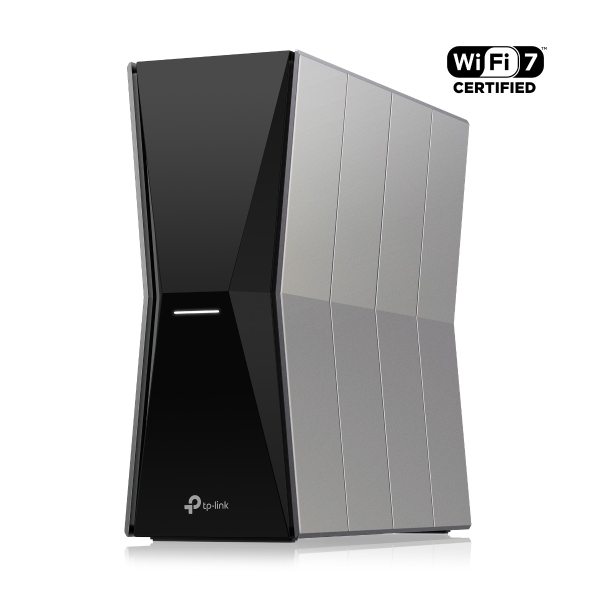
1. TP-Link Archer BE770
Steps to Change DNS Settings:
Connect your phone or computer to your router's Wi-Fi or plug it in with a network cable.
Open a web browser, type http://tplinkwifi.net or the router's IP address into the address bar, and log in.
Click on the Advanced tab at the top of the page.
Select Network from the left-hand menu, then click on Internet.Find the Advanced settings section or dropdown menu on that page.
Change the setting from Get the IP address dynamically from ISP to Use the following DNS addresses.
Type your preferred Primary DNS and Secondary DNS server numbers into the empty boxes.
Click Save to keep your new settings.
The TP-Link Archer BE770 is a strong all-round home router choice. Tom's Guide currently names it its best overall router, highlighting performance above 2 Gbps and coverage of around 130 feet.
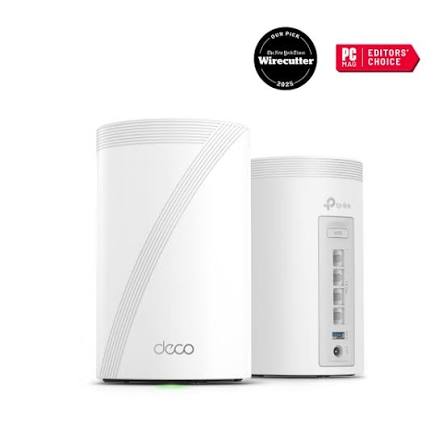
2. TP-Link Deco BE63
Steps to Change DNS (WAN):
Open the TP-Link Deco App on your phone.
Tap More in the bottom right corner.
Go to Internet Connection and select Internet Settings.Tap DNS Address.
Change the setting from automatic to Manual.
Type in your preferred Primary and Secondary DNS server addresses.
Tap Save.
The Deco BE63 is designed for whole-home Wi-Fi 7 coverage and is a strong option when a single router cannot reliably cover every room. Current 2026 testing guides place it among the leading Wi-Fi 7 mesh systems.
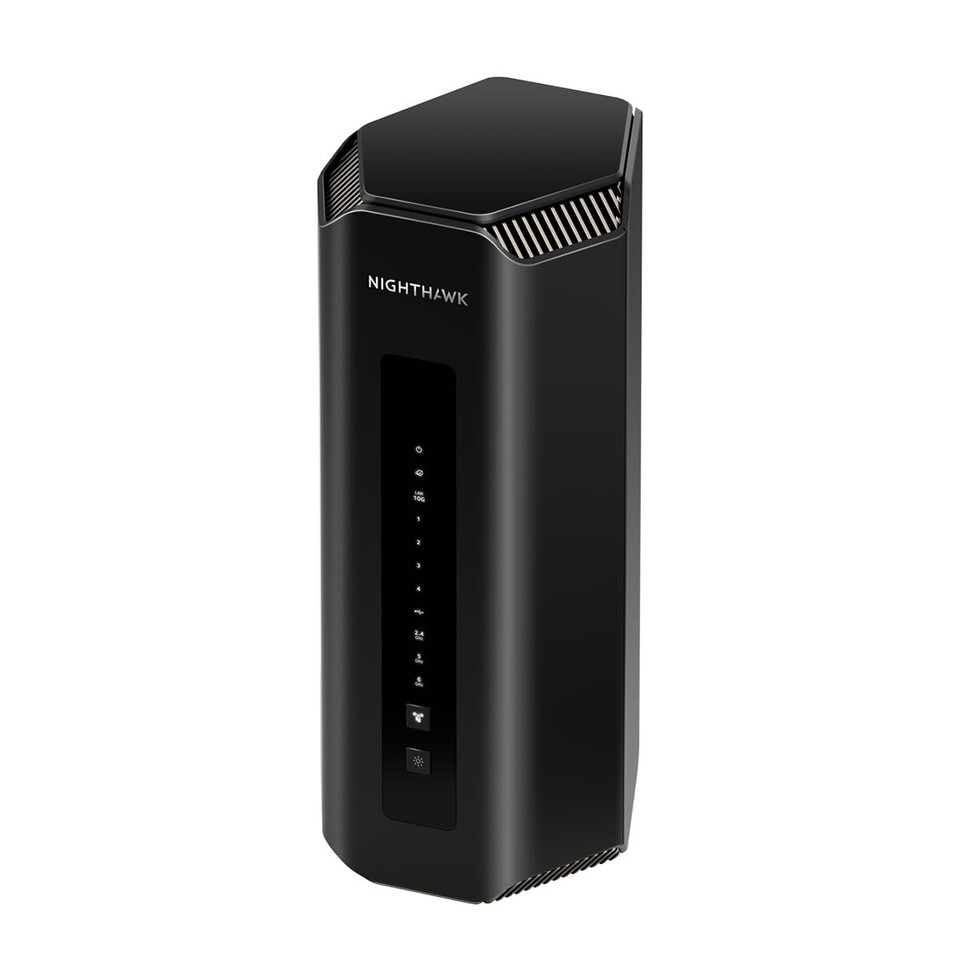
3. Netgear Nighthawk RS700S
Steps to Change DNS Settings:
Connect your computer or phone to your router's Wi-Fi or an Ethernet cable.
Open a web browser and type www.routerlogin.net or 192.168.1.1 into the address bar.Log in with your admin username and password.
Click on the Internet tab or menu option.
Scroll down to the Domain Name Server (DNS) Address section.
Select the radio button for Use These DNS Servers.
Type your preferred Primary DNS and Secondary DNS IP addresses.
Click Apply to save your changes.
The Nighthawk RS700S is a premium Wi-Fi 7 router aimed at users who want high performance and long-term upgrade potential. BroadbandNow currently ranks it as its most comprehensive Wi-Fi 7 upgrade.
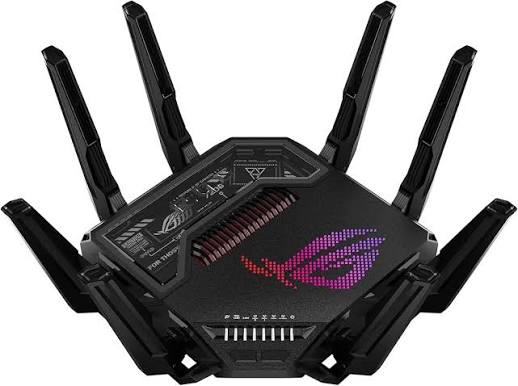
4. ASUS ROG Rapture GT-BE98
Steps to Change DNS Settings:
Connect your computer or phone to the router via Wi-Fi or an Ethernet cable.
Open a web browser, type http://www.asusrouter.com or your router's LAN IP address into the address bar, and press Enter.
Enter your administrator username and password to log in.In the left-hand menu, look under Advanced Settings and click on WAN.
Select the Internet Connection tab at the top of the page.Scroll down to the WAN DNS Setting section.
Find Connect to DNS Server automatically and set it to No.
Click Assign or select Manual Setting from the DNS list.
Enter your preferred primary and secondary DNS server addresses.
Click Apply at the bottom of the page to save your new configuration.
The ROG Rapture GT-BE98 is a high-end quad-band Wi-Fi 7 router with extensive multi-gigabit connectivity. It is particularly suited to gaming, fast fibre broadband and homes with demanding wired and wireless devices.
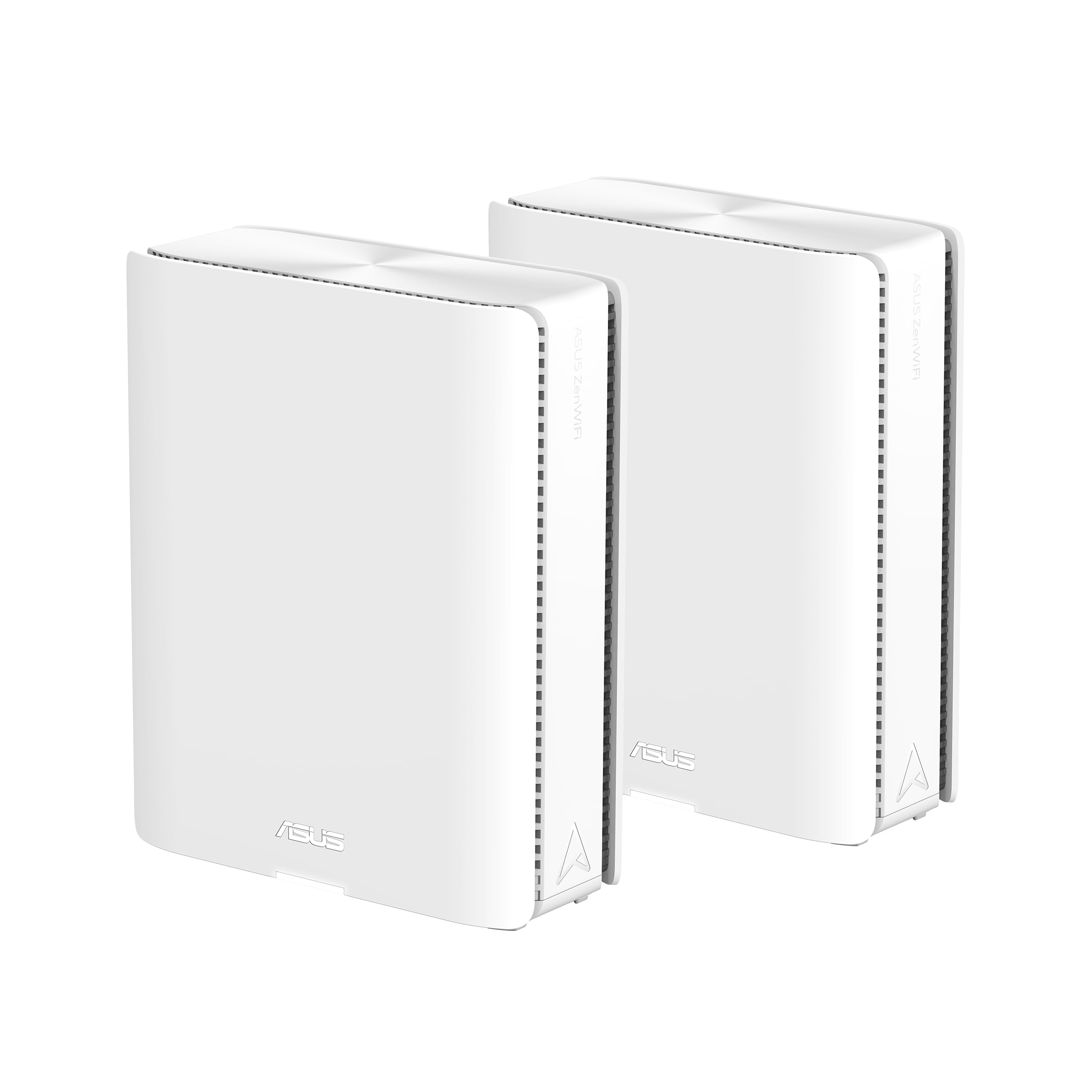
5. ASUS ZenWiFi BQ16 Pro
Steps to Change DNS Settings:
Connect to your network using Wi-Fi or an Ethernet cable linked to your ASUS mesh system.
Open a web browser and type http://www.asusrouter.com or the router's local IP address (typically 192.168.50.1 or 192.168.1.1) into the address bar.
Log in with your administrator username and password.
On the left-hand menu, navigate to WAN under Advanced Settings, then select the Internet Connection tab at the top.
Scroll down to the WAN DNS Setting section.
Set Connect to DNS Server automatically to No (or click Assign).
Enter your preferred primary and secondary DNS server addresses.
Click Apply at the bottom of the page to save your changes.
The ZenWiFi BQ16 Pro is a premium mesh option designed for homes that need broad, reliable Wi-Fi coverage. It combines Wi-Fi 7 performance with the flexibility of a mesh system.
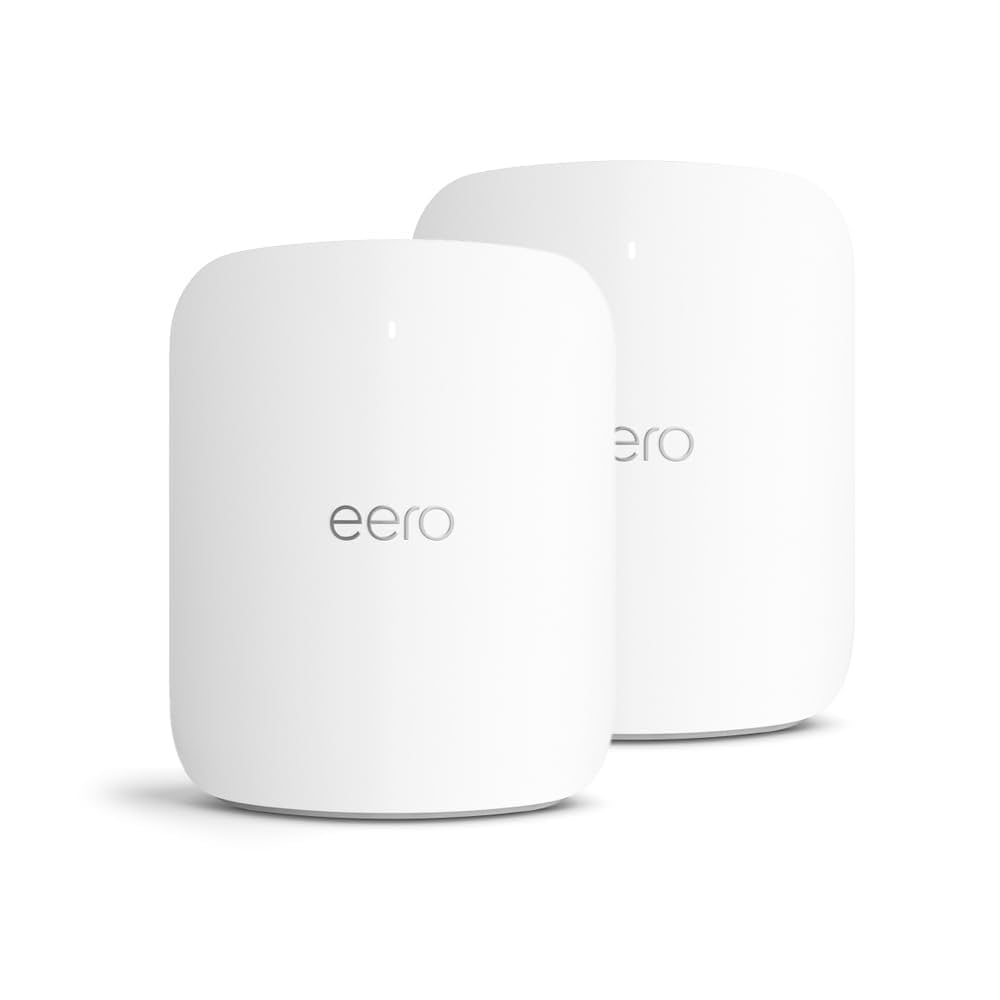
6. Amazon eero Max 7
Steps to Change DNS:
Open the eero app on your phone or tablet.
Tap Settings in the bottom-right corner.
Tap Advanced networking.
Tap DNS.
Select Custom DNS.
Enter your preferred primary and secondary DNS server addresses.
Tap Save in the top-right corner.
The eero Max 7 is a premium Wi-Fi 7 mesh router aimed at households that want straightforward setup and strong smart-home integration. It is especially appealing to users already invested in Amazon's eero ecosystem.
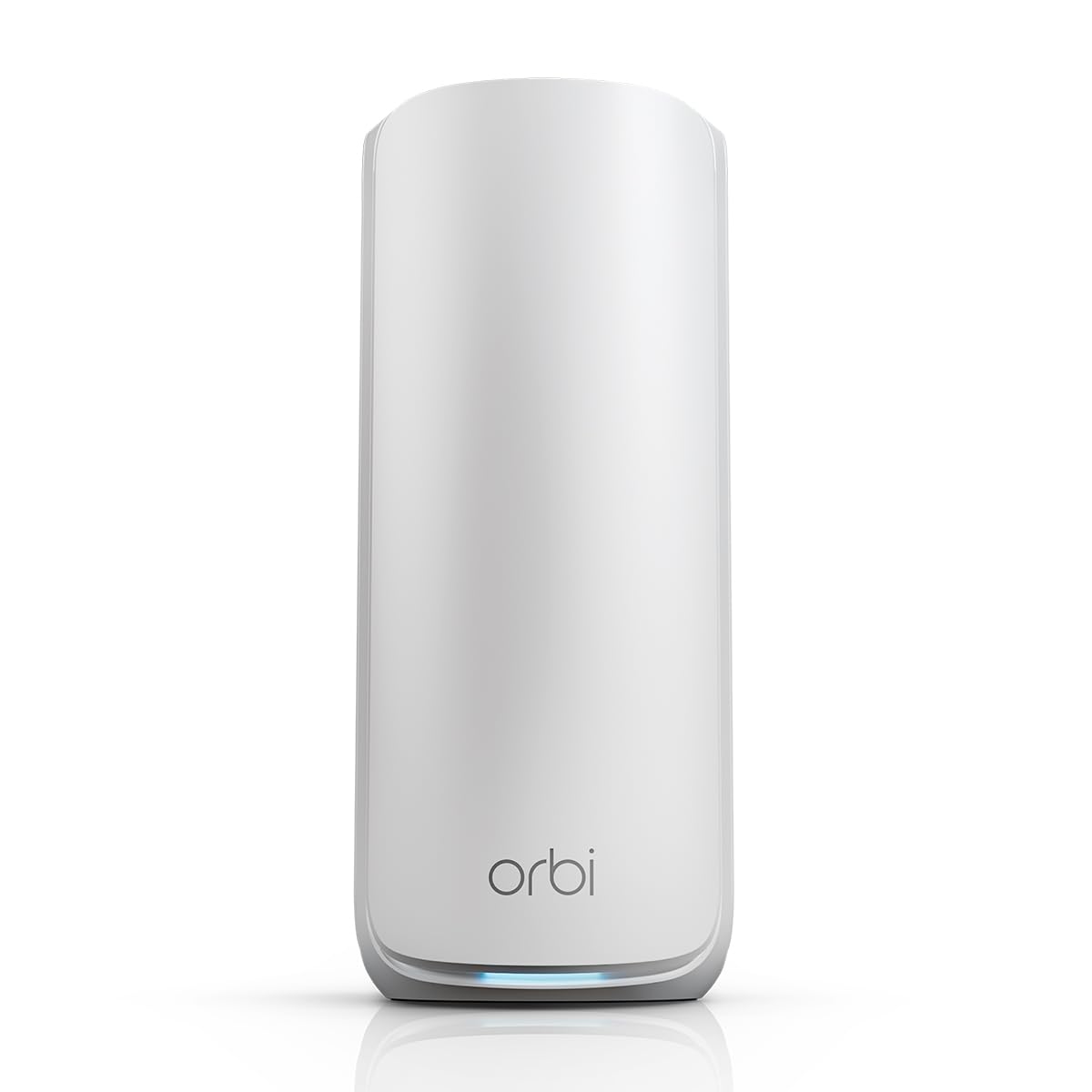
7. Netgear Orbi 870
Steps to Change DNS Settings:
Connect your computer or phone to your Orbi Wi-Fi network.Open a web browser and go to www.routerlogin.net or www.orbilogin.com.
Log in using your admin username (usually admin) and your password.
Go to the Advanced or Basic menu and select Internet (or Setup > Internet Setup).
Locate the Domain Name Server (DNS) Address section.
Select the radio button for Use these DNS Servers.
Enter your preferred Primary DNS and Secondary DNS addresses.
Click Apply to save your changes.
The Orbi 870 is built for large homes that need a mesh system rather than a single access point. Tom's Guide currently highlights it as a leading mesh choice for large homes.

8. ASUS RT-BE88U
Steps to Change DNS Settings:
Connect your computer or phone to the router via Wi-Fi or an Ethernet cable.
Open a web browser, type http://router.asus.com (or your router's LAN IP address like 192.168.50.1) in the address bar, and press Enter.
Log in using your router username and password.
On the left menu under Advanced Settings, click on WAN.
Select the Internet Connection tab at the top.
Scroll down to find the WAN DNS Setting section.
Set Connect to DNS Server automatically to No, or click Assign to open the DNS list.
Enter your preferred primary and secondary DNS server addresses.
Scroll to the bottom of the page and click Apply to save the changes.
The RT-BE88U is a high-performance Wi-Fi 7 router with a strong focus on wired networking as well as wireless performance. It is a good fit for homes with multi-gig broadband, gaming PCs, NAS devices and other wired equipment.
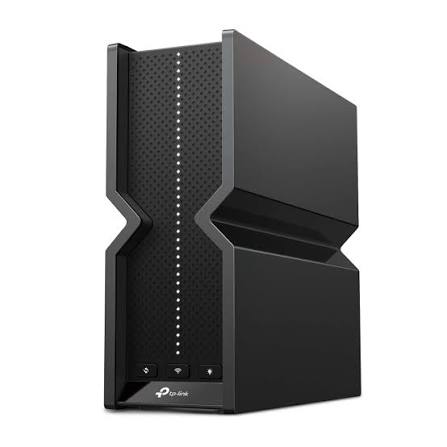
9. TP-Link Archer BE550
Steps to Change DNS Settings:
Connect your computer or phone to your router's Wi-Fi or plug it in with an Ethernet cable.
Open a web browser and type http://tplinkwifi.net or 192.168.0.1 into the address bar.
Log in using your router password.
Click on the Advanced tab at the top of the page.
On the left menu, click Network, then select Internet.
Look for the Advanced Settings section and select Use the following DNS addresses.
Type your preferred Primary DNS and Secondary DNS server addresses.
Click Save.
Go to Advanced > System > Reboot and click Reboot.
The Archer BE550 is a popular value-focused Wi-Fi 7 router. UK testing guides currently identify it as one of the strongest choices for buyers who want Wi-Fi 7 without moving into premium pricing.
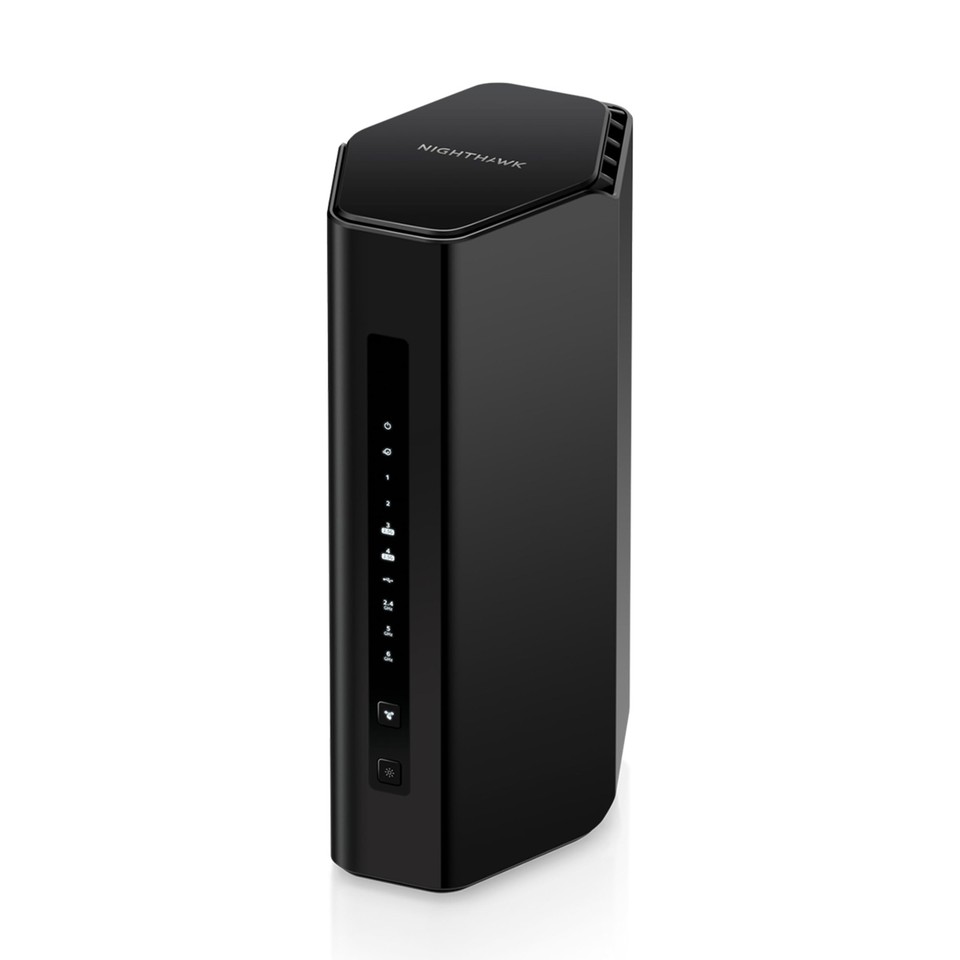
10. NETGEAR Nighthawk RS300
Steps to Change DNS Settings:
Connect your computer or phone to your router's Wi-Fi network or plug it in with an Ethernet cable.
Open a web browser and type http://www.routerlogin.net or 192.168.1.1 in the address bar.
Log in using your admin username and password (the default username is usually admin and the password is password unless you changed it).
Click on the Basic tab and select the Internet tile (or look under Advanced > Setup > Internet Setup depending on your specific firmware version).
Scroll down to the Domain Name Server (DNS) Address section.
Select the radio button for Use These DNS Servers.
Type your preferred Primary DNS and Secondary DNS IP addresses.
Click Apply or Save to store your new settings
The Nighthawk RS300 provides a strong balance of Wi-Fi 7 performance, features and price. It is a practical option for households wanting to upgrade to Wi-Fi 7 without choosing one of the most expensive flagship routers.
Which home router is best for you? For most households, a good Wi-Fi 7 router such as the TP-Link Archer BE770 or Archer BE550 offers an excellent balance of speed, range and value. Larger homes may benefit more from a mesh system such as the TP-Link Deco BE63 or Netgear Orbi 870. Gamers and users with multi-gigabit fibre connections may prefer a high-end model such as the ASUS ROG Rapture GT-BE98.
Rankings are editorial recommendations based on current 2026 testing and reviews. Router availability, pricing and rankings can change, so this list should be reviewed regularly.